Shocking Google Analytics 4 Implementation: Step by Step
 Ekrem Abdulkerim
Updated 08/09/2026
8 min read
Ekrem Abdulkerim
Updated 08/09/2026
8 min read
Are you struggling to make sense of your Google Analytics 4 implementation? You’re not alone. Since Google sunsetted Universal Analytics in 2023, businesses worldwide have been navigating the transition to GA4 configuration and its event-based tracking model. This comprehensive GA4 setup guide will transform you from a beginner to a confident user, capable of extracting meaningful insights that drive business growth.
Unlike traditional guides that overwhelm you with technical jargon, this step-by-step GA4 implementation guide focuses on practical, actionable strategies. Whether you’re a marketer, business owner, or analyst, you’ll learn exactly how to set up, configure, and leverage GA4 to make data-driven decisions with confidence.
Why Google Analytics 4 Implementation Matters in 2025
Google Analytics 4 implementation represents a fundamental shift in digital analytics. Unlike its predecessor, Universal Analytics, which stopped processing new data in 2023, GA4 setup uses an event-based data model that provides a more complete view of the customer journey across websites and apps. This approach to GA4 configuration helps businesses:
Cross-Platform User Behavior
Understand customer interactions between your website and mobile applications with unified tracking – a key benefit of proper GA4 implementation.
Privacy-First Measurement
Navigate increasing privacy regulations with cookieless measurement and enhanced data controls through correct GA4 configuration.
Predictive Analytics
Leverage machine learning to anticipate future customer behavior and revenue opportunities with advanced GA4 setup.
Deeper Customer Insights
Gain comprehensive understanding through a more flexible, event-driven tracking system that’s central to Google Analytics 4 implementation.
The transition to GA4 implementation isn’t just an upgrade—it’s a necessary evolution to stay competitive in today’s data-driven landscape. As we move through 2025, businesses that haven’t fully adopted GA4 configuration risk operating with outdated metrics and incomplete customer insights.
GA4 vs Universal Analytics: Key Differences
| Feature | Universal Analytics | Google Analytics 4 Implementation |
|---|---|---|
| Data Model | Session-based | Event-based |
| Cross-Platform Tracking | Limited | Native website and app tracking |
| Privacy Features | Basic | Advanced cookieless measurement |
| Reporting Interface | Standard reports | Customizable, exploration-focused |
| Machine Learning | Limited | Advanced predictive metrics |
| Data Retention | Up to 50 months | 2-14 months (configurable) |
Understanding GA4’s Event-Based Tracking Model
At the heart of Google Analytics 4 implementation is a completely different approach to data collection. Unlike Universal Analytics which focused on sessions and pageviews, GA4 configuration treats every interaction as an “event”. This fundamental shift allows for much more flexible and detailed tracking of user behavior during your GA4 setup.

Types of Events in GA4:
- Automatically Collected Events: page_view, session_start, first_visit
- Enhanced Measurement Events: scroll, click, file_download, video_engagement
- Recommended Events: login, sign_up, purchase (have predefined names)
- Custom Events: Business-specific interactions you define during GA4 configuration
Step-by-Step GA4 Implementation Guide
Step 1: Create Your GA4 Property
Begin your Google Analytics 4 implementation by setting up your GA4 property. According to Google’s official GA4 setup guide, if you already have a Universal Analytics property, you can use the GA4 Setup Assistant for a smoother transition.
Action Steps:
- Navigate to your Google Analytics account
- Click “Admin” in the lower-left corner
- In the “Account” column, ensure you’ve selected the correct account
- In the “Property” column, click “Create Property”
- Select “Google Analytics 4” and follow the setup wizard
Step 2: Configure Your Data Streams
Data streams are the foundation of GA4 tracking. You can set up streams for websites, iOS apps, and Android apps to get a complete view of user interactions across platforms as part of your GA4 configuration.

For Website Tracking:
- In your GA4 property, go to “Data Streams” and click “Add Stream”
- Select “Web” and enter your website URL and stream name
- Configure enhanced measurement based on your tracking needs
- Copy the measurement ID for GA4 implementation
Step 3: Implement the Tracking Code
Proper implementation of the GA4 tracking code is crucial for accurate data collection. You have several options depending on your technical expertise and website platform for your GA4 setup.
Implementation Methods:
- Google Tag Manager (Recommended): Most flexible option for managing multiple tags
- gtag.js Direct Implementation: Add the code directly to your website’s header
- CMS Plugins: Many platforms like WordPress have GA4 integration plugins
Step 4: Set Up Events and Conversions
Events are the core of GA4’s data model. Unlike Universal Analytics, which relied heavily on pageviews, GA4 configuration treats all interactions as events, providing more granular data.
Essential Events to Track:
- Automatically Collected Events: page_view, scroll, click, etc.
- Enhanced Measurement Events: file_downloads, outbound_clicks, site_search
- Recommended Events: login, search, share, etc.
- Custom Events: Business-specific interactions for your GA4 implementation
To mark an event as a conversion, simply toggle the “Mark as conversion” switch in the GA4 interface under “Events.” This is a crucial step in GA4 configuration.
Step 5: Configure Cross-Device Tracking
GA4’s cross-device tracking capabilities help you understand how users interact with your business across different devices and platforms. This advanced GA4 implementation technique provides a more complete customer journey view.
Key Setup Steps:
- Enable Google Signals in Data Collection settings
- Set up cross-domain measurement if you have multiple domains
- Consider implementing User-ID tracking for logged-in users
Advanced GA4 Features to Leverage
Audience Builder and Segmentation
GA4’s audience builder allows you to create highly specific user segments based on behavior, demographics, and events. These audiences can be used for analysis or exported to Google Ads for remarketing in your GA4 implementation.

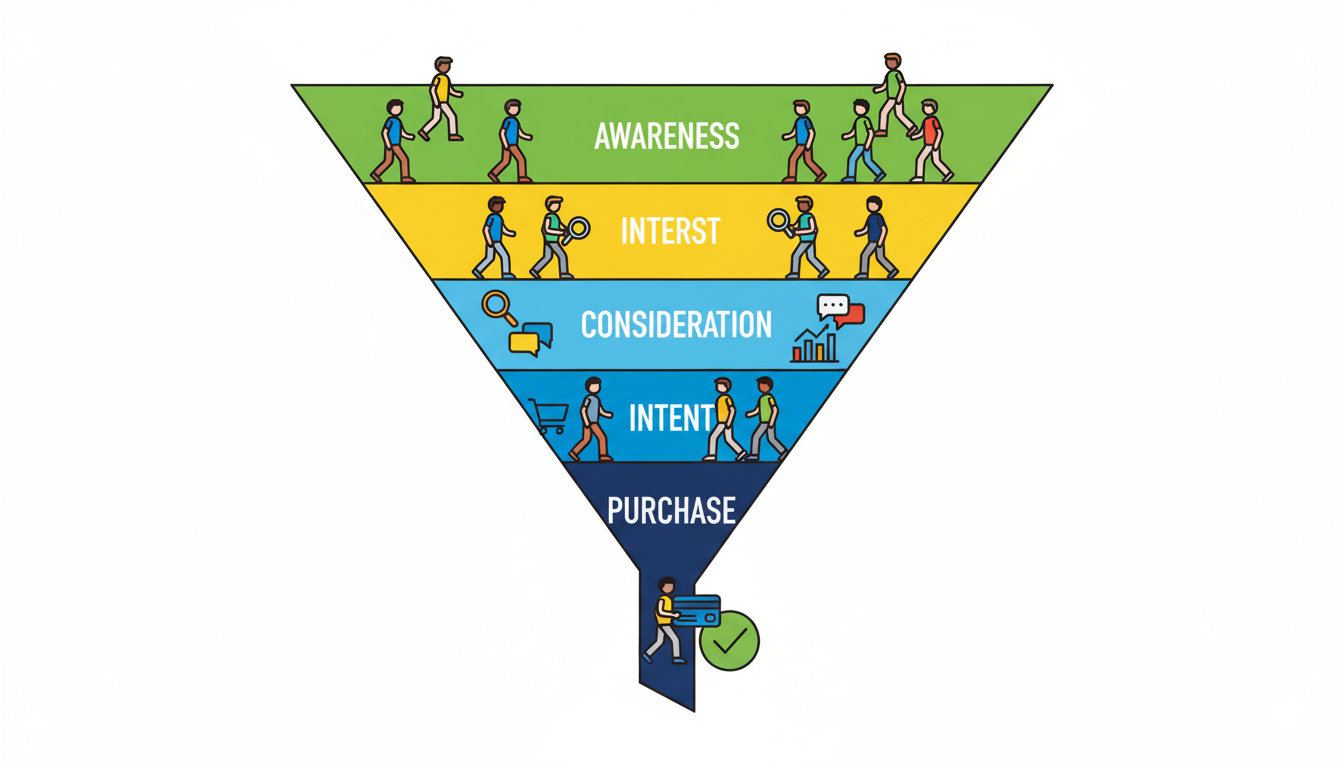
Exploration Reports and Funnel Analysis
Exploration reports are GA4’s most powerful analysis feature, offering multiple techniques to uncover insights in your analytics setup:
- Free-form Exploration: Build custom tables and charts
- Funnel Exploration: Analyze user paths and drop-off points
- Path Analysis: Visualize user navigation through your site
- Segment Overlap: Compare multiple audience segments
Predictive Metrics
GA4 implementation uses machine learning to generate predictive metrics that help anticipate future user behavior:
- Purchase Probability: Likelihood that users will purchase in next 7 days
- Churn Probability: Likelihood that users will not return in next 7 days
- Predicted Revenue: Expected revenue from specific user segments
Privacy-Centric Design
GA4 implementation is built with privacy at its core, offering features like data deletion controls, consent mode integration, and cookieless measurement to help businesses comply with regulations like GDPR and CCPA. According to Google’s GA4 setup guide, this privacy-first approach is fundamental to the platform.
Common GA4 Implementation Mistakes to Avoid
Measuring Success with GA4
Once your Google Analytics 4 implementation is complete, focus on these key metrics to measure success:
- Engaged Sessions: Sessions that lasted longer than 10 seconds, had a conversion, or included multiple pageviews
- Engagement Rate: Percentage of engaged sessions
- Engagement Time: Average time users spend actively interacting with your site
- Conversions: Completion of key business objectives through your GA4 setup
- Revenue: Total revenue from e-commerce and other monetization
FAQs: Google Analytics 4 Implementation
How long does it take for data to appear in GA4 after implementation?
Data typically begins appearing in your GA4 implementation reports within 24 hours. However, some reports may take up to 48 hours to populate fully. Real-time reports should show data almost immediately if GA4 configuration is correct.
Can I run GA4 and Universal Analytics simultaneously?
While Universal Analytics stopped processing new data in July 2023, you can maintain both properties for historical comparison. However, all new tracking should be implemented in GA4 configuration exclusively, as Universal Analytics no longer collects data.
What’s the biggest difference between GA4 and Universal Analytics?
The most significant difference is the data model: Universal Analytics used a session-based model focused on pageviews, while GA4 implementation uses an event-based model that treats all interactions as events, providing more flexible and detailed tracking.
Is Google Analytics 4 implementation free to use?
Yes, the standard version of Google Analytics 4 implementation is free with generous data limits suitable for most small to medium businesses. Google also offers Analytics 360, a paid enterprise version with higher data limits and additional features.
How do I know if my GA4 implementation is working correctly?
Use the GA4 DebugView in the interface, check the Real-Time reports to see current activity, and validate your GA4 implementation with Google’s Tag Assistant browser extension. These tools help identify any GA4 configuration issues.
Ekrem Abdulkerim
SEO Strategist and Founder of LineUp. I help brands dominate search through technical precision and measurable growth.
Stay Ahead of the Curve
Get the latest SEO strategies and marketing insights delivered to your inbox.
Ready to dominate search?
See how LineUp helps businesses win on Google, drive organic traffic and turn it into leads.