
The short version
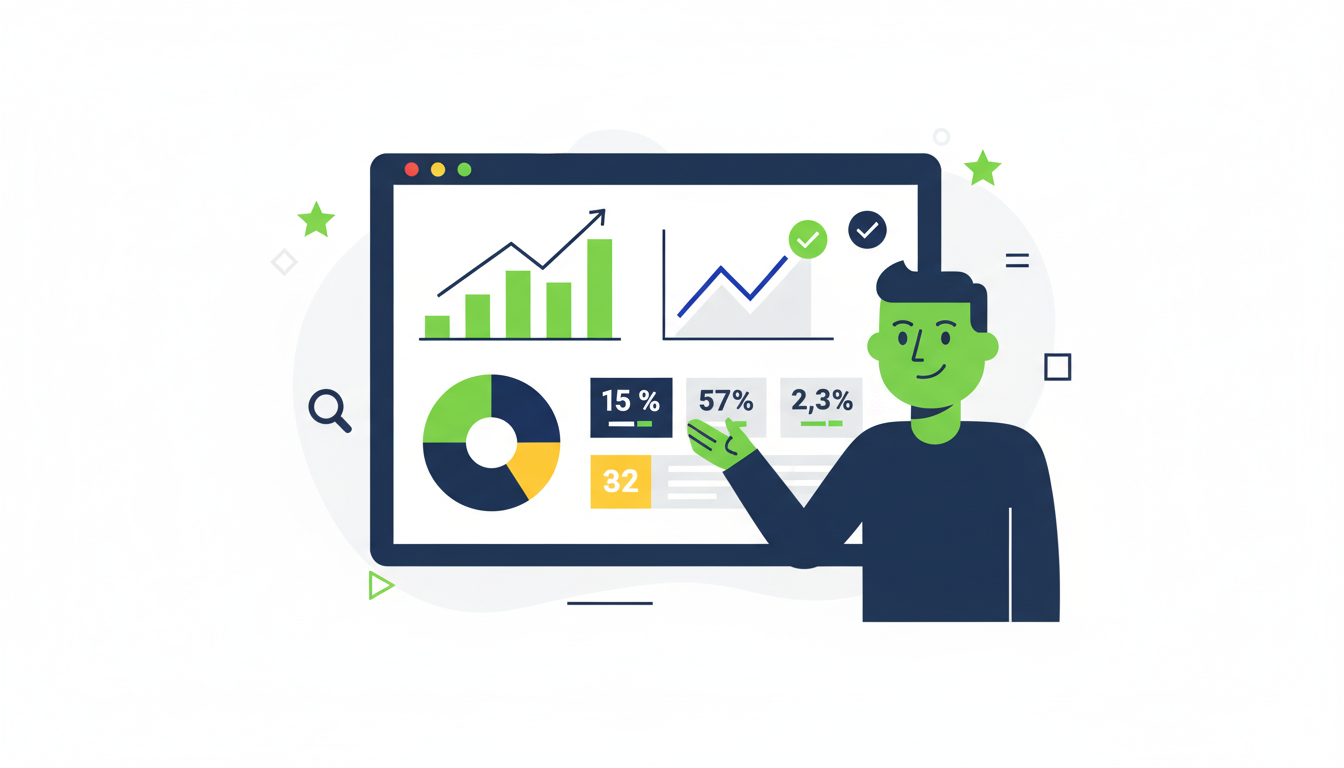
- A GA4 implementation is five jobs: property, data stream, tag, key events and testing.
- Decide which business actions you need to measure before you install anything.
- Set data retention to 14 months and test every key event in DebugView.
- Install the tag once only, or page views will be double-counted.
A Google Analytics 4 implementation takes five jobs: create a property, add a web data stream, install the tag, mark your key events, and test that data arrives. Most small sites can finish the basics in an afternoon. The work that takes longer is deciding what you want to measure before you touch any code.
This guide walks through each step in order, with the settings people most often get wrong. It is written for business owners and marketing leads who need working GA4 data, not a tour of every report.
What does a GA4 implementation involve?
A GA4 implementation means creating a Google Analytics 4 property, connecting a data stream for your website or app, installing the measurement tag, defining key events and checking that data is collected. Universal Analytics no longer processes data, so GA4 is the only option.
GA4 uses an event-based model. Every interaction, from a page view to a purchase, is recorded as an event with parameters that add context. A ‘purchase’ event, for example, can carry ‘value’, ‘currency’ and ‘items’. That is more flexible than the old session and pageview model, and it is why planning matters more than it used to.
Before you start, write down the five or six actions that make your business money: a contact form sent, a phone number tapped, a booking made, a purchase completed. Those become your key events later. Decide what to measure first, then tag.
GA4 vs Universal Analytics: key differences
| Feature | Universal Analytics | Google Analytics 4 |
|---|---|---|
| Data Model | Session-based | Event-based |
| Cross-Platform Tracking | Limited | Native website and app tracking |
| Privacy Features | Basic | Consent mode support, no IP address logging, data deletion controls |
| Reporting Interface | Standard reports | Customizable, exploration-focused |
| Machine Learning | Limited | Advanced predictive metrics |
| Data Retention | Up to 50 months | 2-14 months (configurable) |
The practical differences for a small business are few. GA4 counts events instead of sessions as its core unit, it has no “views”, and its reports are organised around the customer journey rather than pages. Your old goals do not carry over automatically, so rebuild them as key events.
Want this done for you?
We do SEO and AI search for businesses like yours. Start with a free audit and get a written plan and price within 48 hours.
How does GA4’s event-based tracking work?
GA4 records every interaction as an event, and each event can carry parameters such as a value, currency or page title. Events fall into four groups: collected automatically, enhanced measurement, recommended by Google, and custom events you define yourself for your own business.

- Automatically collected: page_view, session_start, first_visit.
- Enhanced measurement: scroll, outbound clicks, site search, video engagement and file downloads, switched on per data stream.
- Recommended: login, sign_up, purchase and others with names Google has already defined. Use these names where one fits, so reports work without extra setup.
- Custom: anything specific to you, such as a quote request or a brochure download.
How do you set up GA4 step by step?
Create a GA4 property in Admin, add a web data stream with your site address, copy the measurement ID that starts with G-, install the tag through Google Tag Manager or directly on the site, then mark key events and test in DebugView. Google’s setup guide covers the same sequence.
Step 1: Create your GA4 property
Sign in to Google Analytics, click Admin in the lower-left corner, choose the right account, then click Create and select Property. Enter a property name, time zone and currency. Use the UK time zone and pounds if you report to a UK team, because changing currency later does not restate old data.
Step 2: Configure your data streams
A data stream is the source that feeds data into the property. Add one stream per website or app. For a website, choose Web, enter the URL and a stream name, and decide which enhanced measurement options to keep on. Then copy the measurement ID.

Step 3: Install the tracking code
You have three routes. Google Tag Manager is the most flexible, because you can add events later without editing the site. Pasting the gtag.js snippet in the page header is quicker but needs a developer for each change. CMS plugins suit WordPress sites that do not need custom events.
Install the tag once only. Running both a plugin and Tag Manager with the same measurement ID double-counts page views, which is one of the most common reasons GA4 numbers look inflated.
Step 4: Set up events and key events
Open Admin, then Events, and mark the actions that matter to you as key events. Google renamed “conversions” to key events in GA4, and the key events help page explains how they feed reports and Google Ads. Keep the list short: five to eight is plenty.
If you advertise on Google, import the same key events into Google Ads, so both tools report the same counts.
Step 5: Configure cross-device and cross-domain tracking
If people move between your main site and a separate booking or checkout domain, set up cross-domain measurement in the data stream settings, or each visit will be split into two. If users log in, send a User-ID so one person is not counted as several. Turn on Google Signals only after checking your consent setup.
Step 6: Test before you trust the data
Use DebugView to watch events arrive in real time from your own browser, and the Tag Assistant extension to confirm the tag fires once per page. Test every key event yourself: submit the form, click the phone link, complete a test purchase.
From our work: in analytics audits we often see that the most common fault is not a missing tag but a form that thanks the user without firing an event, or a tag that fires twice. Both are caught in ten minutes of DebugView testing, and both quietly distort conversion reports for months if nobody checks.
What are the advanced GA4 features worth using?
The advanced features worth learning first are audiences, explorations and the Google Search Console link. Audiences group users by behaviour and can be shared with Google Ads. Explorations let you build funnels and paths. Predictive metrics exist too, but only work once your property has enough event volume.
Audiences and segmentation
The audience builder creates groups of users from events, demographics and behaviour. Use them for analysis, or export them to Google Ads for remarketing. A useful first audience is people who viewed a pricing or service page but never sent an enquiry.

Exploration reports and funnels
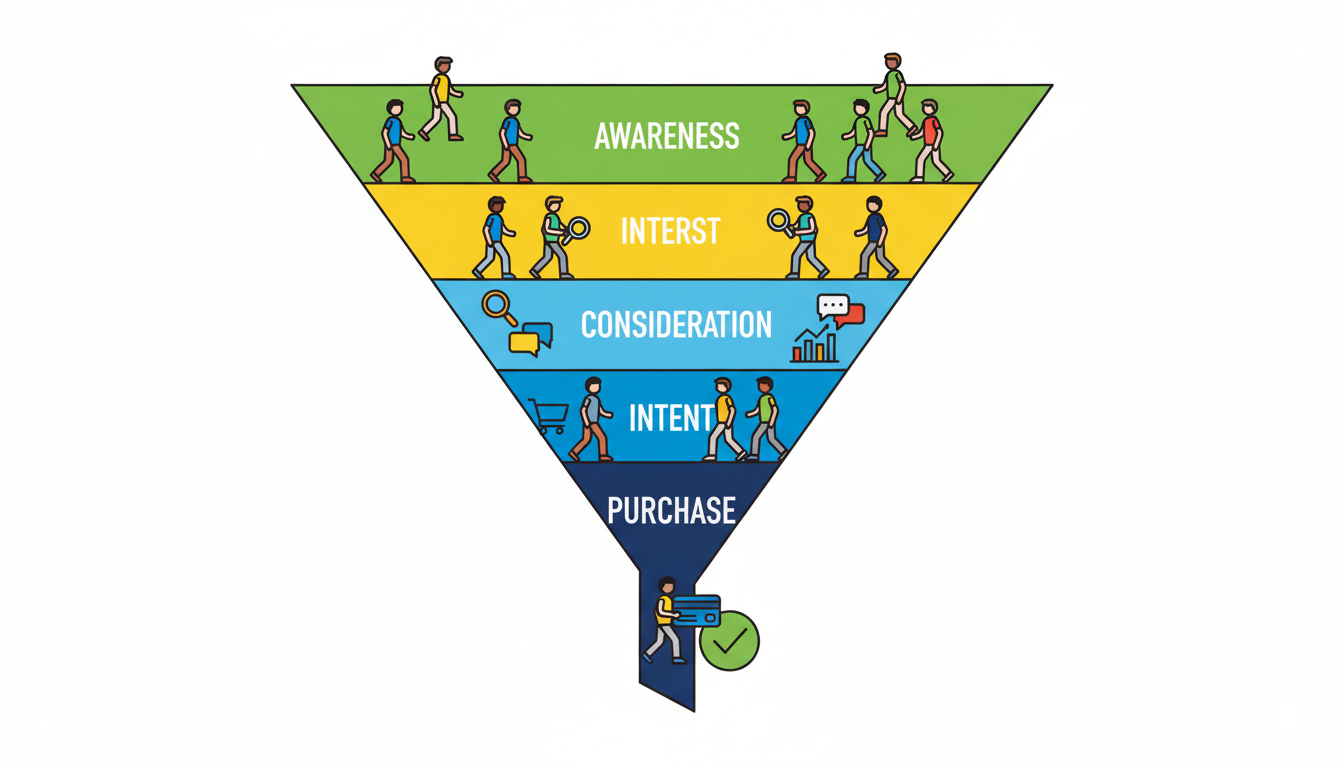
Explorations are the most flexible analysis area in GA4. Funnel exploration shows where users drop out of a journey, path exploration shows what they did next, and free-form exploration builds your own tables. They are the right tool once the standard reports stop answering your question.
Predictive metrics
GA4 can model purchase probability, churn probability and predicted revenue. These need enough purchase and returning-user volume to activate, so many small sites will not see them. Treat them as a bonus, not a reason to adopt GA4.
Privacy and consent
GA4 includes data deletion controls and supports Google’s consent mode, which adjusts how tags behave based on a visitor’s cookie choices. If you serve visitors in the UK or EU, connect your cookie banner to consent mode and keep your privacy policy accurate. Check this with your own legal adviser.
What are the most common GA4 implementation mistakes?
The most common mistakes are leaving the data retention period at two months, installing the base tag without any key events, double-tagging the site, and forgetting to link Search Console. Each one is quick to fix and each silently reduces what your reports can tell you.
- Only the base tag installed. Without key events you can see traffic but not results.
- Search Console not linked. The free link shows which queries bring organic visitors. Our free SEO tools for small business guide covers it.
- Internal traffic included. Filter your own office and agency visits, or small sites will look busier than they are.
- E-commerce events missing. Without view_item, add_to_cart and purchase events with values, you cannot judge product or channel revenue.
How do you measure success in GA4?
Judge GA4 data by key events, engagement rate and the source of those key events. Engagement rate is the share of sessions that were engaged, meaning they lasted over 10 seconds, had a key event or had at least two page views. A rising key event count from organic search is the clearest sign your marketing works.
Review the Acquisition reports monthly and look at which channels deliver key events, not only visits. If you also run paid search, compare GA4 key events with Google Ads conversions; our pay-per-click service page explains how we align them. For organic work, SEO services depend on exactly this data.
Frequently asked questions
Real-time reports and DebugView show events within seconds to minutes of the tag firing correctly. Standard reports can take 24 to 48 hours to populate fully. If real-time shows nothing after an hour, check the measurement ID, whether the tag is on every page and whether a consent banner is blocking it.
You can keep the old Universal Analytics property for reference, but it no longer collects new data, because standard properties stopped processing hits on 1 July 2023. Everything you want to measure now must be tracked in GA4. Export any historic reports you still need.
The biggest difference is the data model. Universal Analytics was built around sessions and pageviews, while GA4 records every interaction as an event with parameters. That makes tracking more flexible across websites and apps, but it means goals, views and reports from the old setup have to be rebuilt rather than copied.
Yes, standard Google Analytics 4 is free for most small and medium businesses. Google also sells Analytics 360, a paid version for enterprises with higher limits and longer retention options. Most businesses will never need it. Check the current limits on Google’s help centre before deciding.
Open DebugView and trigger your key events from your own browser; each should appear within moments. Then confirm the Real-time report shows your visit, and use Tag Assistant to check the tag fires once per page. Repeat the test after any site or consent banner change.
Get your GA4 setup checked
If you would rather have the tag, key events and reporting set up and checked by someone who does this weekly, get in touch with LineUp and we will review your current setup.

Co-Founder, LineUp Agency
Ekrem Abdulkerim is the co-founder of LineUp. He leads the performance side: analytics and tracking, technical SEO and Google Search Console. Search, ads and video for businesses that want more customers. Every guide is based on what we see in client accounts. See our services


